 how-to
Smart Fridge Setup and Installation: 2026 Guide
Table of Contents
- Before You Start: Measurements, Clearance, and What You'll Need
- How Long to Wait Before Plugging In a New Fridge
- Removing the Old Appliance and Prepping the Space
- Refrigerator Water Line Installation Guide
- Leveling the Unit and Aligning the Doors
- Smart Fridge Setup: Pairing the Companion App and Wi-Fi
- Smart Fridge Wi-Fi Connection Troubleshooting
- Firmware Updates, Privacy Settings, and Smart Home Integration
- Post-Setup Maintenance for Smart Features
- Frequently Asked Questions
Last Updated: September 17, 2026
Before You Start: Measurements, Clearance, and What You'll Need
Smart fridge setup and installation succeeds or fails long before you plug anything in. The physical prep work, measuring your space, checking the door swing, and gathering the right tools, determines whether the next few hours go smoothly or turn into a frustrating afternoon of rework.
This guide from The Appliance Wizard covers the full process, from the moment the delivery truck pulls away to the moment your fridge is talking to your phone. The steps below reflect what actually works in a real kitchen.
Measuring Your Space and Door Swing
A refrigerator needs clearance on three sides: back, top, and both sides. Most manufacturers recommend at least 2.5 centimeters of space behind the unit for the water line and power cord, and roughly 1-2 centimeters on each side so the doors open without scraping cabinetry.
Door swing matters just as much as width. Measure the space in front of the fridge with the doors fully open. A French-door model can need nearly a meter of forward clearance. If your kitchen island sits too close, the doors won't open far enough to pull out the crisper drawers.
Tools and Installation Kit Checklist
Gather everything before you start moving the old unit. Here's what you'll need:
- Tape measure and level
- Adjustable wrench and pliers
- Flathead and Phillips screwdrivers
- Braided stainless steel water line (if not included)
- New shut-off valve, if the existing one is seized
- Bucket and towels for water spills
- Appliance dolly or furniture sliders
- Smartphone with your home Wi-Fi password handy
Most new refrigerators ship with a basic installation kit, but the water line is often sold separately. Check the box contents before the delivery crew leaves.
How Long to Wait Before Plugging In a New Fridge
Wait at least 2 to 4 hours before plugging in a new refrigerator if it was laid flat or tilted during transport. This waiting period lets the compressor oil settle back into the compressor, where it belongs.
Here's why it matters. Refrigerant and oil share the sealed system. Tip the unit sideways and oil migrates into the refrigerant lines. Plug it in too soon and the compressor runs without proper lubrication, which can shorten its life or cause immediate failure.
If the fridge stayed upright the entire trip, you can plug it in right away. When in doubt, wait. A few hours of patience protects an expensive appliance.
Removing the Old Appliance and Prepping the Space
Pull the old refrigerator forward and unplug it before anything else. Then shut off the water supply at the saddle valve or wall valve behind the unit.
Disconnect the water line and have a towel ready, since some water will always drain out. Cap the valve or close it fully to prevent drips while you work.
Next, clean the alcove. Years of dust, pet hair, and crumbs collect behind a fridge, and that buildup can clog the condenser coils on your new unit. Vacuum the floor and wipe down the walls. Check the electrical outlet for damage and confirm it's a dedicated circuit, since refrigerators draw significant power and shouldn't share with other high-draw appliances.
The U.S. Department of Energy's appliance energy guidance notes that proper clearance and clean coils help refrigerators run more efficiently.
Refrigerator Water Line Installation Guide
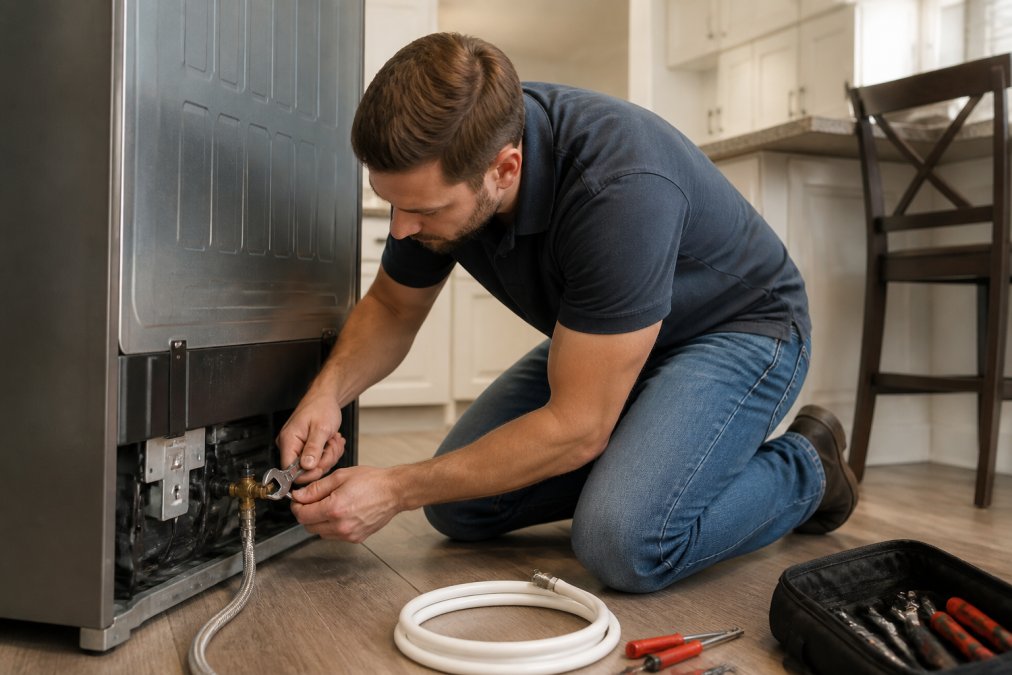
A refrigerator water line installation guide comes down to three things: the right tubing, a secure connection at both ends, and a leak test before you push the fridge into place. Get these right and your ice maker and water dispenser will work reliably for years.
Connecting the Shut-Off Valve and Tubing
Use braided stainless steel tubing rather than plastic. Plastic lines crack over time and are a leading cause of slow leaks that damage floors.
Route the tubing from the shut-off valve to the inlet on the back of the fridge. Leave a gentle loop behind the unit so you can pull the fridge forward later without stressing the connection. Hand-tighten the fittings first, then snug them a quarter turn with a wrench. Overtightening strips the threads and creates the leak you were trying to avoid.
Flushing the Water Filter and Checking for Leaks
New filters contain loose carbon dust. Flush 2 to 3 gallons of water through the dispenser before drinking any of it. Discard the first few batches, then taste-test.
Check every connection with a dry paper towel. Run the dispenser for a minute, then wipe each fitting. Any moisture means a loose connection. Tighten slightly and retest.
Leveling the Unit and Aligning the Doors
Level the refrigerator so the doors close on their own and seal properly. Most units have adjustable leveling legs at the front corners.
Turn the legs clockwise to raise a corner, counterclockwise to lower it. A slight backward tilt, roughly a quarter-inch, helps doors swing shut by gravity. Use a level on top of the unit to confirm.
Door alignment follows leveling. If one door sits higher than the other, adjust the hinge shims or the hinge screws per your model's manual. Misaligned doors don't seal, and a poor seal means the compressor runs constantly.
Once level, push the fridge into its final position, leaving the recommended clearance behind it.
Smart Fridge Setup: Pairing the Companion App and Wi-Fi
Smart fridge setup is where the physical installation hands off to the digital one. The companion app is your control center for temperature, diagnostics, and notifications, and it only works once the fridge is on your Wi-Fi network.
Downloading the App and Creating Your Account
Download the manufacturer's app from the App Store or Google Play. Create an account with a valid email, since firmware updates and warranty registration often route through it.
Have your Wi-Fi network name and password ready. Most smart fridges only connect to 2.4 GHz networks, not 5 GHz. If your router broadcasts both under one name, you may need to split them in your router settings first.
Pairing Mode and Entering Network Credentials
Put the fridge into pairing mode, usually by holding a button on the display for a few seconds until an indicator blinks. Open the app, select "Add Device," and enter your network credentials.
The app walks you through the handshake. Once connected, name the appliance and assign it to a room. The whole process typically takes under 10 minutes when the network cooperates.
| Smart Fridge Setup Step | Typical Time | Common Snag |
|---|---|---|
| Download app and create account | 3-5 minutes | Email verification delay |
| Enter pairing mode | 1 minute | Button location varies by model |
| Enter Wi-Fi credentials | 2 minutes | 5 GHz network incompatibility |
| Confirm connection and name device | 2 minutes | Weak signal at fridge location |
Smart Fridge Wi-Fi Connection Troubleshooting
Smart fridge Wi-Fi connection troubleshooting starts with the two most common culprits: wrong network band and weak signal. Fix those first before assuming the fridge is faulty.
Wrong band. Smart fridges overwhelmingly connect on 2.4 GHz. If your phone is on 5 GHz and the fridge can't see the network, that's your problem, not a hardware defect. Many routers ship with a single SSID that broadcasts both bands and steers devices automatically, but the fridge may not negotiate that handshake correctly. The fix is to log into your router's admin page and split the bands into two separate network names, for example HomeWiFi for 2.4 GHz and HomeWiFi-5G for 5 GHz, then connect the fridge to the 2.4 GHz name. Reboot the router after the change.
Weak signal. Refrigerators are metal boxes, and metal blocks Wi-Fi. If your router sits on the far side of the house, the fridge may struggle to hold a connection even when setup succeeds. Test signal strength at the fridge's final location with your phone before you start pairing. If your phone shows one bar, the fridge will do worse.
Channel Congestion and Interference
Interference comes from microwaves, cordless phones, baby monitors, and neighboring networks crowding the same channel. On 2.4 GHz, only channels 1, 6, and 11 don't overlap with each other, so those are the only three worth using. Use a Wi-Fi analyzer app on your phone to see which of those three is least crowded in your kitchen, then set that channel manually in your router's admin page instead of leaving it on auto.
A microwave running on the same counter as the fridge is a classic cause of intermittent drops, the fridge reconnects fine, then drops every time someone reheats lunch. If that pattern matches your symptoms, move the router or add a 2.4 GHz access point closer to the kitchen.
Rebooting in the Right Order
When a connection drops, reboot in this order: unplug the fridge for 60 seconds, restart your router, wait for the router to fully come back up, then reconnect through the app. Rebooting the fridge first clears its stale network state; rebooting the router second gives it a clean DHCP lease to hand out. Doing it in the opposite order often leaves the fridge holding an expired IP address.
A factory reset on the fridge's smart panel clears stale network credentials and often resolves stubborn pairing failures. You'll need to re-enter your Wi-Fi password and re-pair the app afterward, so treat it as a last resort before calling support.
When to Add a Wi-Fi Extender or Mesh Node
If the fridge is more than two rooms or about 30 to 40 feet from the router with walls in between, an extender or mesh node is usually the real fix. Place the extender roughly halfway between the router and the kitchen, not in the kitchen itself, an extender sitting next to the fridge is repeating a weak signal, which doesn't help. A mesh system with a node in or near the kitchen generally holds a 2.4 GHz connection more reliably than a single extender.
If the fridge still won't stay connected after band splitting, channel changes, and an extender, check the manufacturer's app for a firmware update, early firmware on some models has known Wi-Fi stability issues that later releases fix.
Firmware Updates, Privacy Settings, and Smart Home Integration
Firmware updates deliver security patches and new features, so run the first one immediately after pairing. The app usually prompts you, but you can also check manually under device settings. Keep the fridge powered and connected during the update, which can take 15 to 30 minutes. Interrupting an update mid-write can brick the smart panel, so don't unplug the fridge or kill the app until the progress bar completes.
Privacy settings deserve a look most homeowners skip. In the app, review what data the fridge collects and shares, and turn off any telemetry or marketing permissions you don't want. The Federal Trade Commission's guidance on connected device privacy explains how to review data-sharing permissions on smart appliances. Pay attention to three categories in particular: diagnostic/telemetry data sent back to the manufacturer, marketing or advertising identifiers, and any camera or microphone permissions if your model has an interior camera or voice assistant built in. Turning off telemetry does not disable core functions like temperature control or the ice maker, it only stops the appliance from phoning home usage data.
Adding the Fridge to a Smart Home Ecosystem
This is the step most setup guides skip entirely, and it's where a smart fridge earns its name. The manufacturer's app controls the fridge; your smart home platform lets the fridge talk to everything else. You generally need to do both, and the order matters.
Amazon Alexa. Enable the manufacturer's Alexa skill in the Alexa app, link your fridge account, then run device discovery. Once discovered, you can ask Alexa for the fridge temperature, add items to a shopping list, or broadcast announcements to a display on the fridge door if your model has one. Some models also expose a "drop in" or intercom function through Alexa.
Google Home. Add the manufacturer's integration under Works with Google Home in the Google Home app, sign in with the same account you used for the fridge app, and assign the appliance to a room. Google Assistant can then report temperatures, read calendar events on a fridge display, or trigger routines, for example, dimming kitchen lights when the fridge door opens at night.
Apple HomeKit. Fewer refrigerator brands support HomeKit natively. If yours does, you'll scan a HomeKit setup code, usually printed on a label inside the fridge or shown on the smart display, then assign the accessory to a room and automation. If your model lacks native HomeKit support, a Matter-compatible bridge or a hub like Home Assistant can sometimes expose basic sensors, but full control is rarely available.
Matter and Thread. Newer refrigerators increasingly ship with Matter support, which lets the same appliance work across Alexa, Google Home, and Apple Home without separate integrations. If your model lists Matter on the box or in the app, enable it during setup, it saves you from re-pairing later if you switch ecosystems.
A common pattern is that the fridge shows up in the manufacturer's app but not in Alexa or Google Home. That almost always means the third-party skill or integration was never linked, not that the fridge is broken. Re-run discovery after linking the account.
Post-Setup Maintenance for Smart Features
Smart features need occasional attention, not constant fiddling. A short maintenance routine keeps everything running.
- Replace the water filter every 6 months, or when the app flags it
- Run firmware updates when prompted, not months later
- Wipe the touchscreen with a soft, damp cloth, never a soaking one
- Recheck door seals monthly by closing a dollar bill in the door and tugging it
- Clear the app's cached data if the interface slows down
A common mistake is ignoring firmware prompts until the fridge drops off the network entirely. Updates are easier to install proactively than to troubleshoot after a failure.
At The Appliance Wizard, our factory-trained technicians handle smart fridge setup and installation for homeowners across the region, from running the water line to pairing the app and confirming the Wi-Fi connection holds. If you'd rather not tackle the plumbing and pairing yourself, we can do both in a single visit.
Setting up a smart fridge involves real work: measuring clearance, running a water line, leveling the unit, and getting it onto your network. Each step builds on the last, and skipping one usually means backtracking later. The Appliance Wizard offers professional installation, in-house repair, and genuine replacement parts, backed by financing options and a price match. Get started with The Appliance Wizard and let our team handle the setup so you can enjoy the fridge instead of wrestling with it.
Frequently Asked Questions
Do you have to wait 24 hours before using a new fridge?
Yes, most manufacturers recommend waiting at least 24 hours after delivery before plugging in a new refrigerator. This lets the compressor oil settle after the unit has been tilted during transport. Plugging it in too soon can damage the compressor and void your warranty. Once plugged in, give the fridge another 24 hours to reach its target temperature before loading it with food.
Does a smart fridge require a professional plumber for installation?
Not always. If your kitchen already has a working shut-off valve and water line, a handy homeowner can connect the tubing in about 30 minutes. A plumber is worth calling when you need a new valve installed, the existing line is corroded, or local code requires a licensed professional for plumbing modifications. Many retailers, including The Appliance Wizard, offer professional installation that covers both the water line and smart fridge setup.
How do I connect my smart fridge to home Wi-Fi?
Download the manufacturer's companion app, create an account, and put the fridge into pairing mode (usually through the touchscreen settings menu). The app will scan for nearby networks. Select your 2.4 GHz network, enter your credentials, and wait for confirmation. If pairing fails, move your router closer, reboot the fridge, or check that your network isn't blocking new IoT devices.
Why would anyone buy a smart fridge?
Smart fridges offer practical benefits beyond novelty: you can adjust temperatures remotely, get alerts when the door is left open, receive water filter replacement reminders, and view expiration dates on the touchscreen. Some models integrate with smart home ecosystems for voice control and energy monitoring. For families managing busy schedules, these features reduce food waste and make maintenance easier to track.