 how-to
Smart Fridge Setup and WiFi Connection: 2026 Guide
Table of Contents
- What You'll Need Before You Start
- Smart Fridge Setup and WiFi Connection: Step-by-Step
- Smart Fridge Troubleshooting WiFi: Fixes for Drops and Errors
- Smart Fridge Security Best Practices for Your Home Network
- Best Smart Kitchen Technology 2026: Features Worth Connecting
- Compatibility, Offline Use, and Smart Home Ecosystem Integration
- When to Call a Pro for Smart Fridge Setup
- Frequently Asked Questions
Last Updated: September 21, 2026
What You'll Need Before You Start
Smart fridge setup and wifi connection works best when you gather a few basics first. Most failed setups trace back to a missing password or the wrong network band, not a faulty fridge.
Before you open the box, confirm these items:
- Your home wifi network name (SSID) and password
- A smartphone or tablet with the fridge maker's app installed
- A 2.4GHz wifi network (most fridges cannot see 5GHz bands)
- Your router's admin login, in case you need to split the bands
- The model and serial number from the label inside the fridge
One more thing worth checking: your router's security mode. Older WEP encryption causes pairing failures on many newer appliances, so switch to WPA2 or WPA3 before you start.
The FCC guide to home wifi equipment explains how router bands work if you want the background before you dig into settings.
Smart Fridge Setup and WiFi Connection: Step-by-Step
The full process takes about 15 to 20 minutes for most models. You will move through four stages: app download, pairing mode, network credentials, and verification.
Here is the sequence at a glance:
| Step | What You Do | Time | Watch For |
|---|---|---|---|
| 1 | Download app, create account | 5 min | Email verification delays |
| 2 | Put fridge in pairing mode | 2 min | Screen must show pairing icon |
| 3 | Scan QR code, enter credentials | 5 min | Exact password, 2.4GHz only |
| 4 | Verify wifi icon, finish setup | 3 min | Solid icon, not blinking |
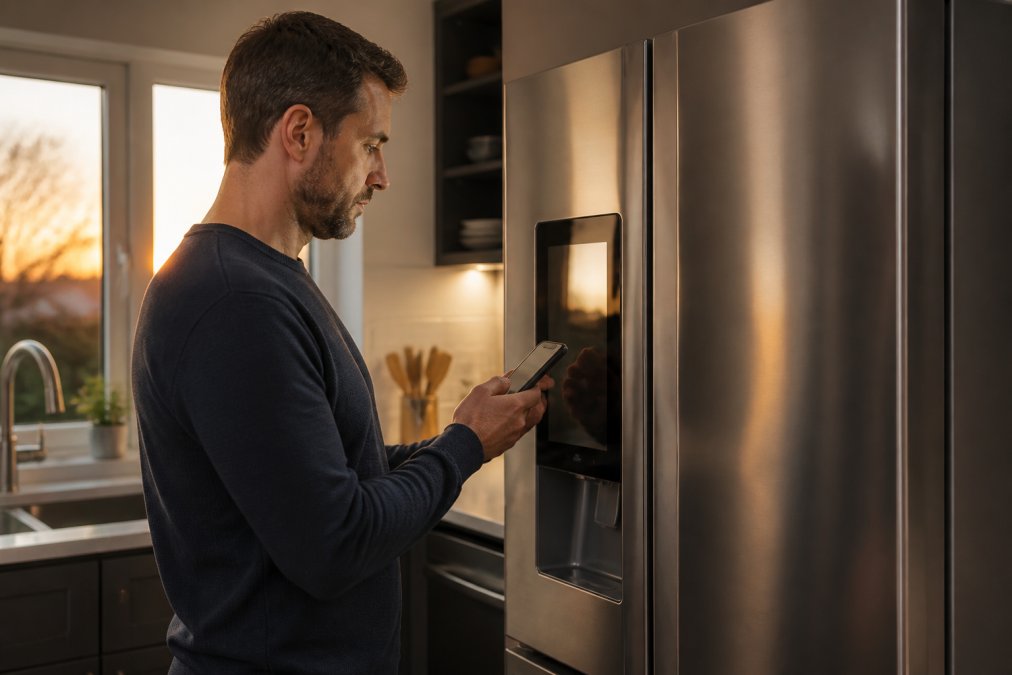
Step 1: Download the Companion App and Create Your Account
Download the fridge maker's companion application from the App Store or Google Play. Search the exact model name, because some brands run several apps for different product lines.
Open the app and create your user account. Use an email you check often, since you will need to verify it before the app unlocks full features.
During account creation, the app will ask for several permissions. Grant these three:
- Location access so the app can detect nearby wifi networks
- Bluetooth for the initial handshake with the fridge
- Notifications for push alerts about temperature and filter changes
Skip location or Bluetooth and pairing will stall at step two. This trips up more people than any other setting.
Once your account is verified, sign in and tap "Add Appliance" on the appliance dashboard.
Step 2: Put the Fridge in Pairing Mode
Pairing mode is a temporary state that lets the fridge broadcast itself to your phone. You cannot connect without it.
The exact button combo varies by brand, but the pattern is consistent. On most models, press and hold the wifi or "Smart" button on the control panel for three to five seconds. On touchscreen models, go to Settings, then Network, then "Pair New Device."
Watch the LCD interface. You want to see one of these signals:
- A blinking wifi symbol
- The words "Pairing" or "AP Mode" on screen
- A slow pulse on the connectivity status light
If nothing changes after ten seconds, release and try again. Holding too long can trigger a factory reset instead of pairing mode, which wipes your settings.
Step 3: Scan the QR Code and Enter Network Credentials
Most modern fridges ship with a QR code printed on a card in the accessory bag, or displayed on the fridge screen itself. Open the app's scanner and point your phone at it.
The QR code scanning step links your phone to that specific appliance. It prevents the app from grabbing a neighbor's fridge on the same network.
Next, the app asks for your network credentials. Type your SSID and password carefully.
A few rules that save time:
- Passwords are case-sensitive, so check capital letters
- Avoid special characters if your fridge rejects the entry
- Confirm you selected the 2.4GHz band, not 5GHz
- Keep your phone within a few feet of the fridge during this step
The app will now pass the credentials to the fridge over Bluetooth. You should see a "Connecting" message, followed by a confirmation.
Step 4: Verify the WiFi Icon and Finish Setup
Verification is the step people skip, and it causes most "it worked yesterday" complaints later.
Look at the fridge display. A solid wifi icon means the connection is live. A blinking icon means the fridge is still trying, or the signal is too weak.
Then confirm in the app. Open the appliance dashboard and check three things:
- Connectivity status reads "Online"
- Signal strength shows at least two bars
- Firmware update is either current or prompted
Install any firmware update now. Updates often fix connection bugs that shipped with the unit.
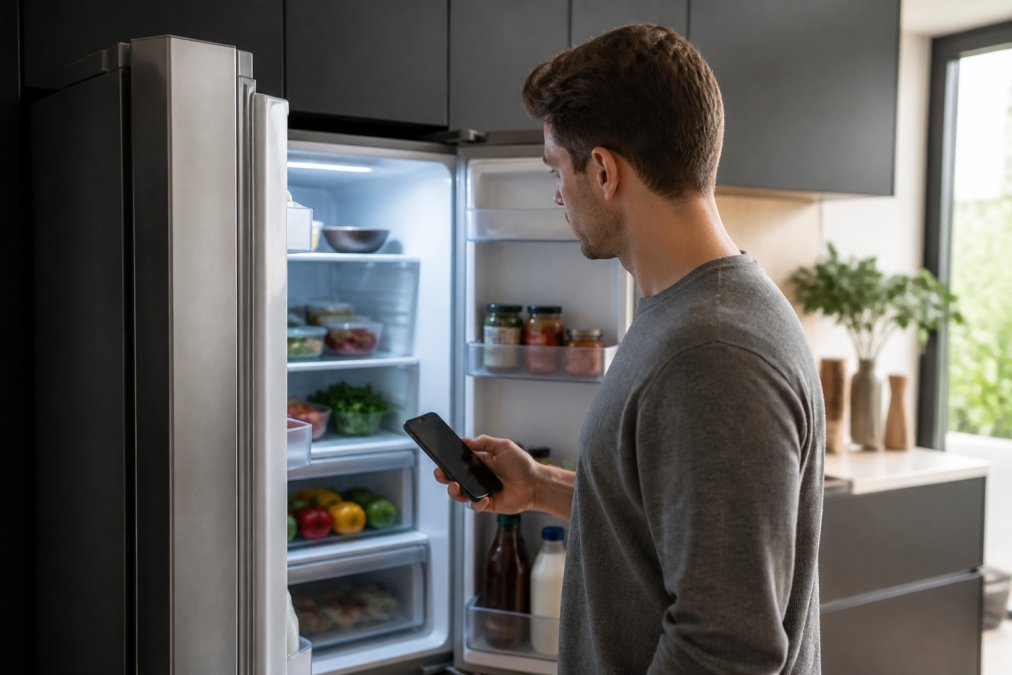
Finally, test remote monitoring. Change the temperature from your phone and watch the fridge respond. If it does, your smart fridge setup and wifi connection is complete.
Smart Fridge Troubleshooting WiFi: Fixes for Drops and Errors
Smart fridge troubleshooting wifi problems usually comes down to signal, band, or credentials. Work through these fixes in order before you assume the fridge is defective.
Fridge will not find the network at all. Check that your router is broadcasting on 2.4GHz. If it is 5GHz-only, the fridge will never see it.
Connection drops repeatedly. Weak signal strength is the likely cause. Move the router closer, remove metal shelving between them, or add a mesh node.
Password rejected. Retype it slowly. Then check your router's security mode, because WEP and some enterprise setups block appliance connections.
App shows "offline" but the fridge works. This is usually a cloud synchronization hiccup. Force-close the app and reopen it.
Nothing works. Try these in sequence:
- Reboot the router and wait two full minutes
- Unplug the fridge for 30 seconds, then plug it back in
- Delete the fridge from the app and re-add it
- Run a factory reset as a last resort
Network latency also matters. If your router is overloaded with devices, the fridge may time out during pairing. Disconnect a few devices and try again.
For deeper background on home network interference, the Wi-Fi Alliance resource library covers how overlapping signals affect connected appliances.
Smart Fridge Security Best Practices for Your Home Network
Most setup guides stop at "change your password." That advice is fine, but it misses the real reason a connected fridge deserves attention: it is an always-on device with a persistent cloud connection, a companion app, and often an outdated embedded operating system that the manufacturer may stop patching years before the compressor wears out. Treat it like a computer on your network, because functionally that is what it is.
The highest-value step is network segmentation. You do not need enterprise hardware to do this. Two approaches work in a typical home:
- Guest network isolation. Most consumer routers ship with a guest network that blocks client-to-client traffic by default. Put the fridge, printer, smart speakers, and any other appliance on it. Your laptops, phones, and network-attached storage stay on the main network. If the fridge is ever compromised, it cannot reach your personal devices.
- VLAN segmentation. If your router supports VLANs (common on prosumer gear), assign IoT devices to a dedicated VLAN with its own subnet and firewall rules that block inbound traffic from the main LAN. This is the same principle as the guest network, just with more control.
A common pattern is to also block the IoT network from reaching your router's admin interface. That single firewall rule prevents a compromised appliance from attempting a login against your router.
Beyond segmentation, work through these in order:
- Change the default password on the fridge's own settings menu, not just the app account. Many models ship with a predictable default.
- Enable WPA3 if your router supports it, otherwise WPA2-AES. Avoid WPA2-TKIP and never use WEP. Older encryption modes cause pairing failures and are trivially broken.
- Turn on two-factor authentication in the companion app if it is offered. It stops a stolen password from becoming full appliance control.
- Keep firmware current. Patches close known vulnerabilities, and appliance firmware is often updated far less frequently than phone or laptop software.
- Disable remote access if you never monitor the fridge from outside your home. Fewer open paths means fewer ways in.
- Audit app permissions every few months. Revoke location, microphone, or contact access the app does not need.
- Check what the fridge sends. Most major brands encrypt traffic between the appliance and the cloud, but budget and older models sometimes do not. The owner's manual or the manufacturer's privacy page usually states this.
A separate guest network for appliances is the single highest-value security step. It costs nothing, takes about five minutes in your router settings, and keeps a compromised fridge from reaching your personal devices. Do this before you finish setup, not after.
For broader guidance on securing connected devices, the CISA guidance on securing the Internet of Things is a practical reference written for homeowners, not network engineers.
Best Smart Kitchen Technology 2026: Features Worth Connecting
The best smart kitchen technology 2026 has to offer is not about gimmicks. The features worth your wifi bandwidth are the ones that save real time or money.
Here is what actually earns its place on your network:
- Remote temperature monitoring that alerts you if the fridge warms up while you are away
- Push notifications for door-left-open and filter replacement
- Energy usage tracking so you can see what the fridge costs to run
- Recipe and inventory sync that suggests meals from what you have
- Diagnostic mode that reports issues before they become breakdowns
Features that sound good but rarely get used: built-in screens for streaming, voice ordering, and family calendars on the fridge door. They add cost and network load without changing how you cook.
The practical winners are the quiet ones. A fridge that texts you when the compressor starts struggling saves a full grocery haul.
When you are shopping, ask one question: does this feature work offline, or does it die with the wifi? That answer separates useful tech from decoration.
Compatibility, Offline Use, and Smart Home Ecosystem Integration
This is where most setup guides get vague, and it is where most real-world failures actually happen. Three things determine whether your fridge will connect and stay connected: the wireless band, the security mode, and whether your router hides the 2.4GHz network behind band steering.
The 2.4GHz vs. 5GHz question, answered directly
Nearly every smart fridge on the market connects on the 2.4GHz band only. That is not a limitation the manufacturer forgot to fix. The 2.4GHz band travels farther and penetrates walls and metal appliance cabinets better than 5GHz, which matters for a device bolted to a kitchen wall. The trade-off is lower throughput, but a fridge does not need throughput. It needs range and reliability.
If your router broadcasts a single merged network name (often called Smart Connect, band steering, or One WiFi Name), the fridge may see the network but fail to complete the handshake because the router keeps trying to push it onto 5GHz. The fix is to log into your router's admin page and either:
- Split the bands into two separate SSIDs (for example,
HomeWiFiandHomeWiFi-5G), then connect the fridge to the 2.4GHz name, or - Temporarily disable band steering during pairing, then re-enable it afterward.
Mesh systems are the most common source of this problem because they aggressively steer clients to the best band. If pairing keeps failing on a mesh system, disable band steering, pair the fridge, then turn it back on.
Compatibility checklist before you buy
- Wireless protocol: most fridges use WiFi plus Bluetooth for the initial handshake. Some use Zigbee or Z-Wave and require a hub.
- Smart home ecosystem: confirm the fridge exposes controls through Alexa, Google Home, SmartThings, or Apple Home. Support is uneven. Temperature and notifications usually carry over. Inventory, camera feeds, and internal screens often do not.
- App OS support: some companion apps drop support for older phone operating systems. Check the app store listing for the minimum OS version before you commit.
- Router requirements: 2.4GHz band, WPA2-AES or WPA3, and a router that lets you split bands or disable band steering.
What actually works when the WiFi goes down
This is the anxiety most buyers have and few guides address. The short answer: the fridge keeps cooling. Refrigeration is a mechanical function and does not depend on the network. What you lose is the smart layer.
| Feature | Works offline | Requires WiFi |
|---|---|---|
| Cooling and temperature control | Yes | No |
| Ice maker and water dispenser | Yes | No |
| Door alarms (local chime) | Usually | No |
| Remote temperature monitoring | No | Yes |
| Push notifications to your phone | No | Yes |
| App-based temperature changes | No | Yes |
| Firmware updates | No | Yes |
| Voice assistant commands | No | Yes |
A useful rule: if the feature requires your phone, it requires WiFi. If it works from the fridge's own control panel, it does not.
Smart home ecosystem integration, realistically
Integration is improving but still uneven across brands. A fridge that pairs cleanly with one ecosystem may expose only a subset of controls through another. Before you rely on a voice assistant to check the fridge temperature, test it during setup. If the assistant cannot read the temperature, the integration is notification-only, and you should not expect more.
For official guidance on connected device standards and interoperability, the NIST cybersecurity framework for IoT is a solid reference.
When to Call a Pro for Smart Fridge Setup
Call a pro when the fridge will not pair after two full attempts, when the control panel shows an error code you cannot clear, or when the unit is new and still under warranty. DIY troubleshooting is fine up to a point. Past it, you risk voiding coverage.
At The Appliance Wizard, our factory-trained, certified technicians provide timely, professional in-home repair, maintenance, and warranty support across most major appliance makes and models. We confirm the network handshake, verify the wifi icon, and walk you through the app before we leave. If the fridge has a defect, we catch it during setup, not three weeks later.
We also maintain a comprehensive inventory of genuine replacement parts, making it easy for homeowners and DIYers to keep their equipment running at peak performance. To ensure upgrading your home remains stress-free and budget-friendly, we offer flexible financing solutions tailored to your financial needs, so a failed control board does not turn into a full replacement.
A few signs it is time to stop and call:
- Repeated connectivity errors after a factory reset
- Error codes on the LCD interface
- Firmware that will not install
- A fridge that pairs but drops every few hours
Our team serves homeowners across the region from two showrooms, and we have built our reputation on honest troubleshooting rather than pushing a new sale. As Kevin Chapman put it, our staff has been "very helpful over the phone with troubleshooting problems without just selling me a new product."
Frequently Asked Questions
What does connecting your fridge to WiFi actually do?
WiFi lets your fridge send push notifications, sync settings to the cloud, and connect with your smart home ecosystem. You can monitor temperatures remotely, get filter replacement alerts, and sometimes view inside the fridge from your phone. It also enables firmware updates that add features or fix bugs. Without WiFi, the fridge still cools and freezes normally, but you lose remote monitoring and app-based controls.
Can a smart refrigerator work without WiFi?
Yes. A smart fridge will cool and freeze without any network connection. The smart features, like remote monitoring, push notifications, and app controls, simply won't work. Some models keep offline functionality like internal cameras or LCD interface menus. If your WiFi drops, the fridge continues its main job. You can reconnect later through the companion app without losing food safety.
How do I reset the WiFi on my smart refrigerator?
Most models have a factory reset option in the settings menu on the LCD interface or through the companion app. Look for 'Network Reset' or 'Factory Reset.' You can also hold the WiFi button on the display for 10-15 seconds. After resetting, the fridge enters pairing mode again, and you can reconnect using the app. Check your manual for the exact button combination.
Is it safe to connect my kitchen appliances to my home network?
It can be safe if you follow smart fridge security best practices. Use a strong, unique password for your WiFi and change default credentials on the appliance. Enable data encryption and keep firmware updated. Consider putting appliances on a separate guest network to limit access to other devices. Review app permissions and disable remote access if you don't need it. These steps reduce risk significantly.
A fridge that will not stay connected turns a smart appliance into a frustrating one. If you have worked through the steps and the wifi icon still will not hold, The Appliance Wizard can help. We offer professional in-home setup, factory-trained technicians, genuine replacement parts, and financing options to make the fix painless. Get started with The Appliance Wizard and get your smart fridge connected for good.